The convenience of unlocking and starting your car with your smartphone is no longer reserved for brand-new luxury models. With the MoboKey Keyless Solution, you can convert nearly any compatible vehicle into a digital asset. MoboKey Digital Car Key setup is a two-part process: a one-time physical installation of the device, followed by a simple pairing procedure in the smartphone app. Here is a comprehensive, step-by-step guide to get you started!
The Foundation – Physical Device Installation
Before your phone can become your key, the MoboKey hardware must be installed in your vehicle to digitize its controls (lock, unlock, and ignition).
-
Installation Preparation:
MoboKey is compatible with most key-start and push-start cars. While the device is user-friendly, installation involves connecting to your car’s wiring harness (ignition, lock/unlock circuits). -
Professional Service:
To ensure proper function and secure wiring for advanced features like the engine kill switch. It is highly recommended that you have the device installed by a certified car electrician or an authorized MoboKey dealer. -
Installer Configuration:
The technician will connect the MoboKey unit. Verify that all remote functions are correctly communicating with the car’s system. You can check locking, unlocking, and starting. They will provide you with the necessary pairing codes (Device ID, Pairing Key, and Master Key).
The Digital Setup – Pairing Your Smartphone
Once you install the device, you are ready to set up your MoboKey Digital Car Key and claim ownership via the app.
Download the App and Create an Account
-
Download:
Get the official MoboKey App from the Google Play Store (Android) or the Apple App Store (iOS). -
Register:
Open the app and tap “Register.” Enter your contact details (name, email, phone number) and set a secure password. -
Verify & Log In:
Complete any necessary verification steps (like an email confirmation) and log into your new MoboKey account.
Pair Your Vehicle to Your Digital Key
-
Enable Bluetooth: Ensure your phone’s Bluetooth is active and that you are standing within close range of your MoboKey-equipped vehicle.
-
Add Car: In the MoboKey app, tap the “Add Car” button (or the + icon).
-
Detect Device: The app will automatically scan for and detect your MoboKey device ID nearby.
-
Enter Pairing Key: Select the detected device ID. The app will prompt you to enter the Pairing Key provided by your installer (the default is often 123456).
-
Claim Ownership: If you are the first user, the app will ask you to “Claim Ownership.” You may be prompted to enter the Master Key (the default is often 1010) to secure the device to your account.
-
Final Configuration: Name your vehicle and confirm the ignition type (Key Start or Push Start).
Test and Activate Advanced Features
Your smartphone is now your digital key! Take a moment to test the core features:
-
Remote Access: Use the lock and unlock buttons in the app.
-
Remote Start: If you have a Pro model, test the remote engine start/stop feature.
-
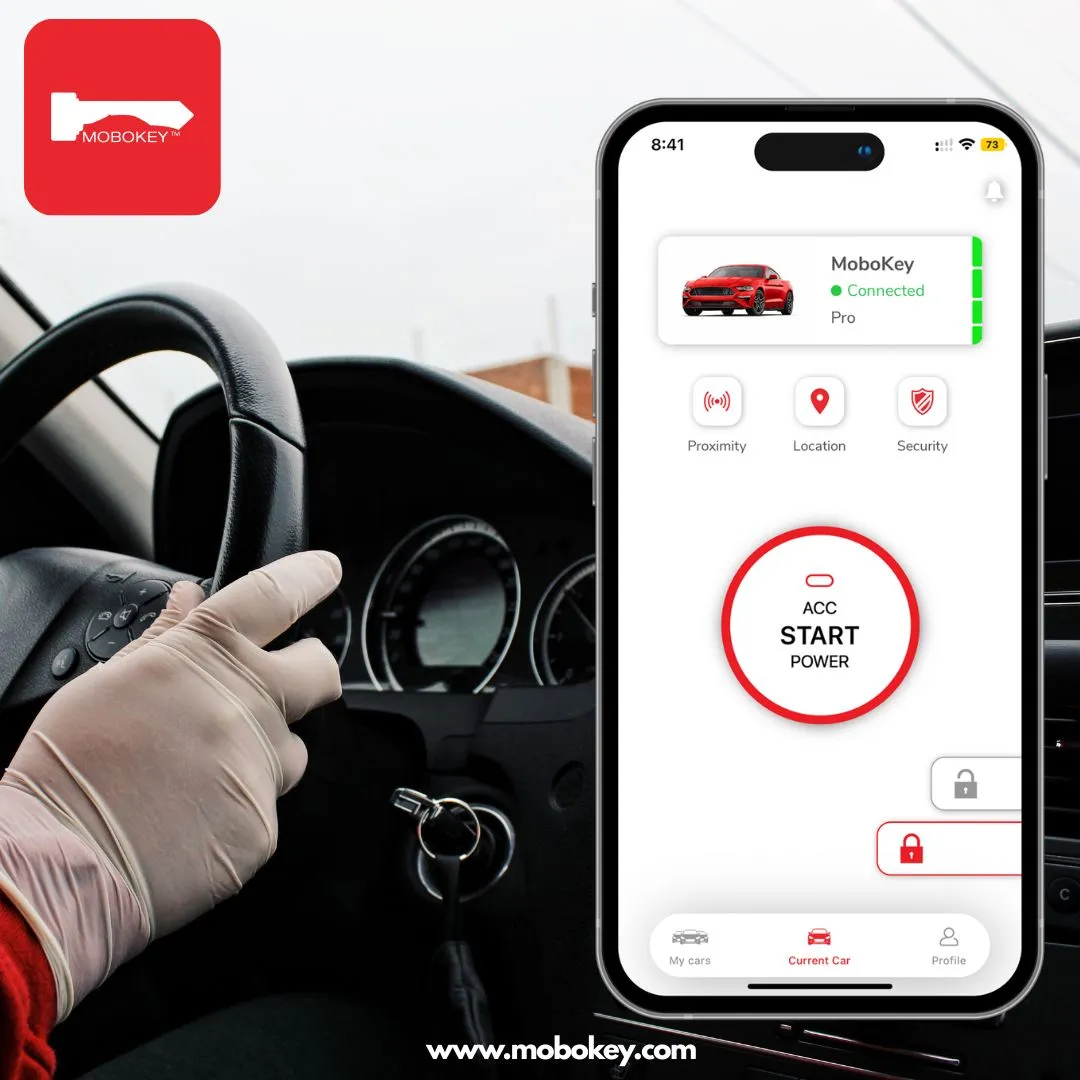
Proximity Feature: Activate the Proximity Lock/Unlock feature in the settings. This allows the car to automatically lock when you walk away and unlock as you approach. It operates just like a modern passive keyless entry system.
Securely Share Your Key (Fleet Managers & Families)
The true power of the MoboKey Keyless Solution is sharing access without handing over a physical object.
-
Go to “Share”: On the main car screen, tap the “Share” button.
-
Add User: Enter the email address of the user you wish to share with (they must also have a MoboKey account).
-
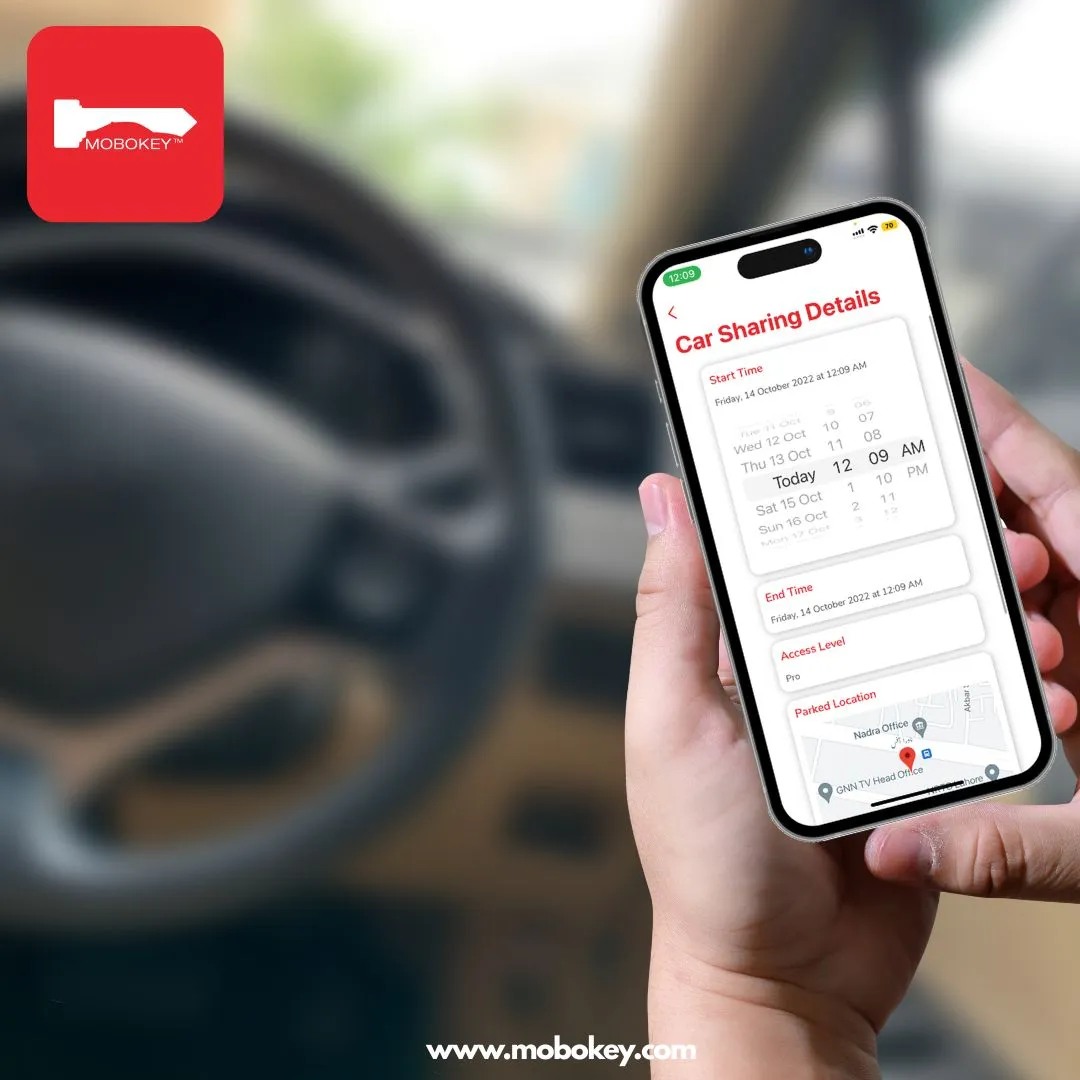
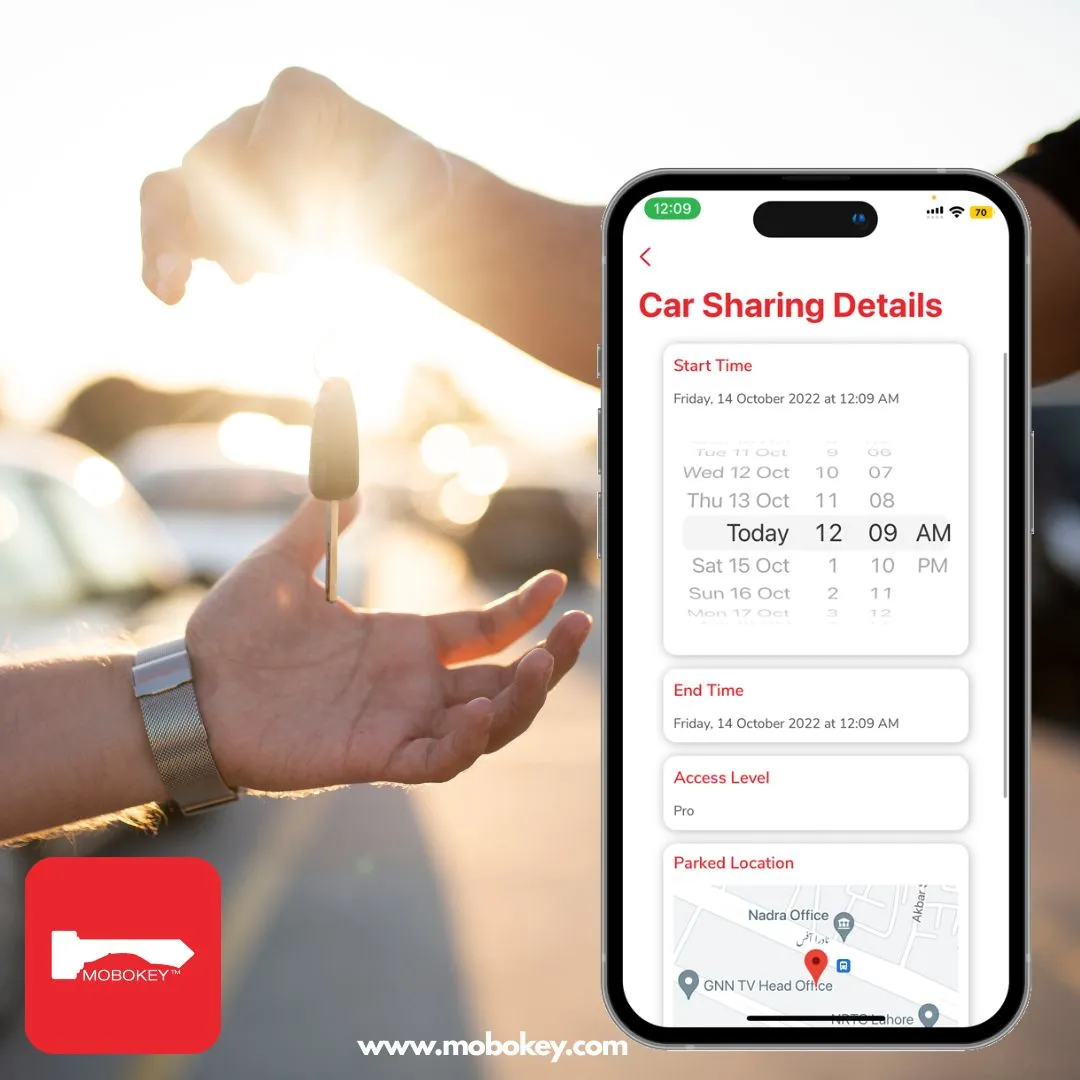
Set Permissions: Define the access level (e.g., Full Control, Limited Access). Set the exact Start/End Time for their digital key access. This is essential for rental or car-sharing operations to ensure security and time adherence.
With the MoboKey Keyless Solution fully set up, you have officially upgraded your car’s access to the digital age, enjoying unmatched convenience and control.
Explore how MoboKey powers the digital key sharing essential for seamless Digital Key Sharing services.
Download the MoboKey application on the App Store or Play Store.